From a blank form to a signed-off record, without leaving SharePoint
There are three stages. You will recognise all of them, because they are the same steps you already do by hand with paper, email and a spreadsheet that never quite stays current.
Build a form
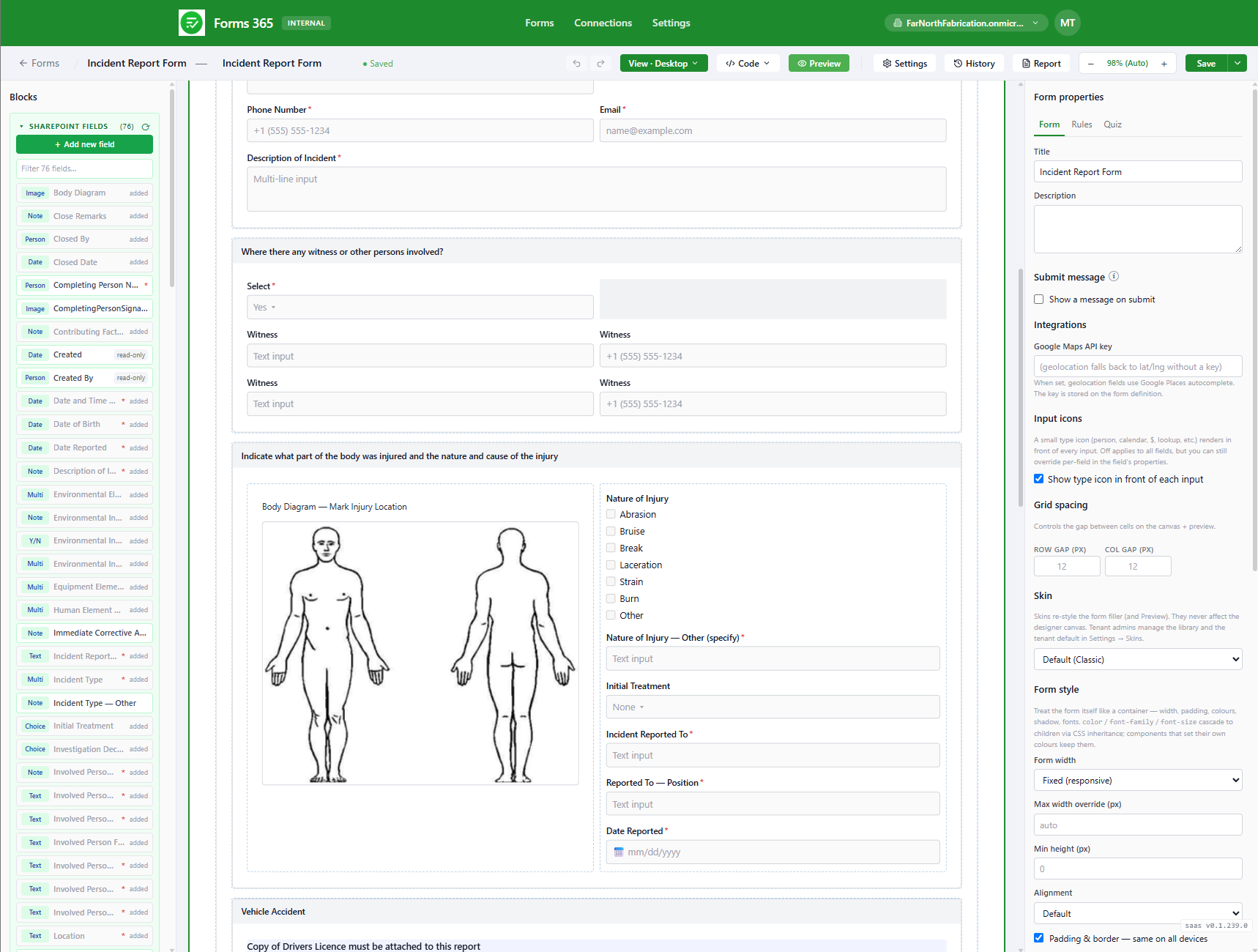
Open the builder, drag in the fields, set the rules for what shows when. Or skip that and open one of the forms we already wrote, an incident report say, then change the bits that do not match how your site runs.
When someone fills it in, the answers land in a SharePoint list. Public link for a contractor or a visitor, or an internal form for staff who are already signed in. Same builder either way.
Conditional fields keep a long form short. The detailed injury questions only appear once someone marks an incident as serious. And it all works on a phone, which matters when the person filling it in is standing in a workshop rather than sitting at a desk.
Run the workflow it starts
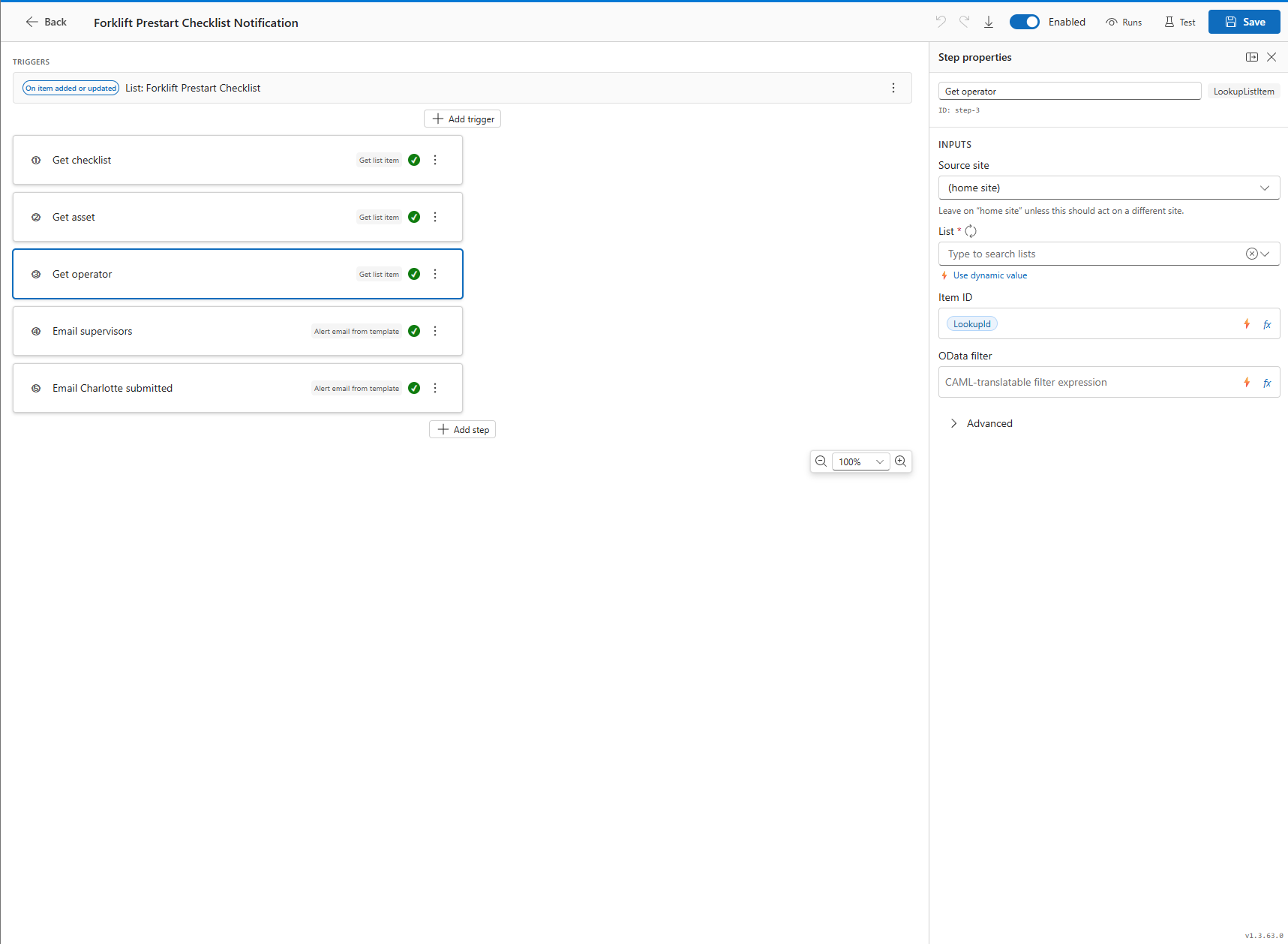
A new entry is a trigger. From there the workflow does the chasing: it sends the form to the right approver, posts a note in Teams, raises a corrective action, and waits. If an approval sits too long, it escalates to the next person up.
Your power users draw these steps themselves, with no code. Prefer us to set the first ones up? That is fine. Either way the workflow is yours to edit afterwards.
Change a workflow and anything already in flight keeps running on the version it began with. So next month's improvement does not quietly break the approval someone started last week.
Keep the proof
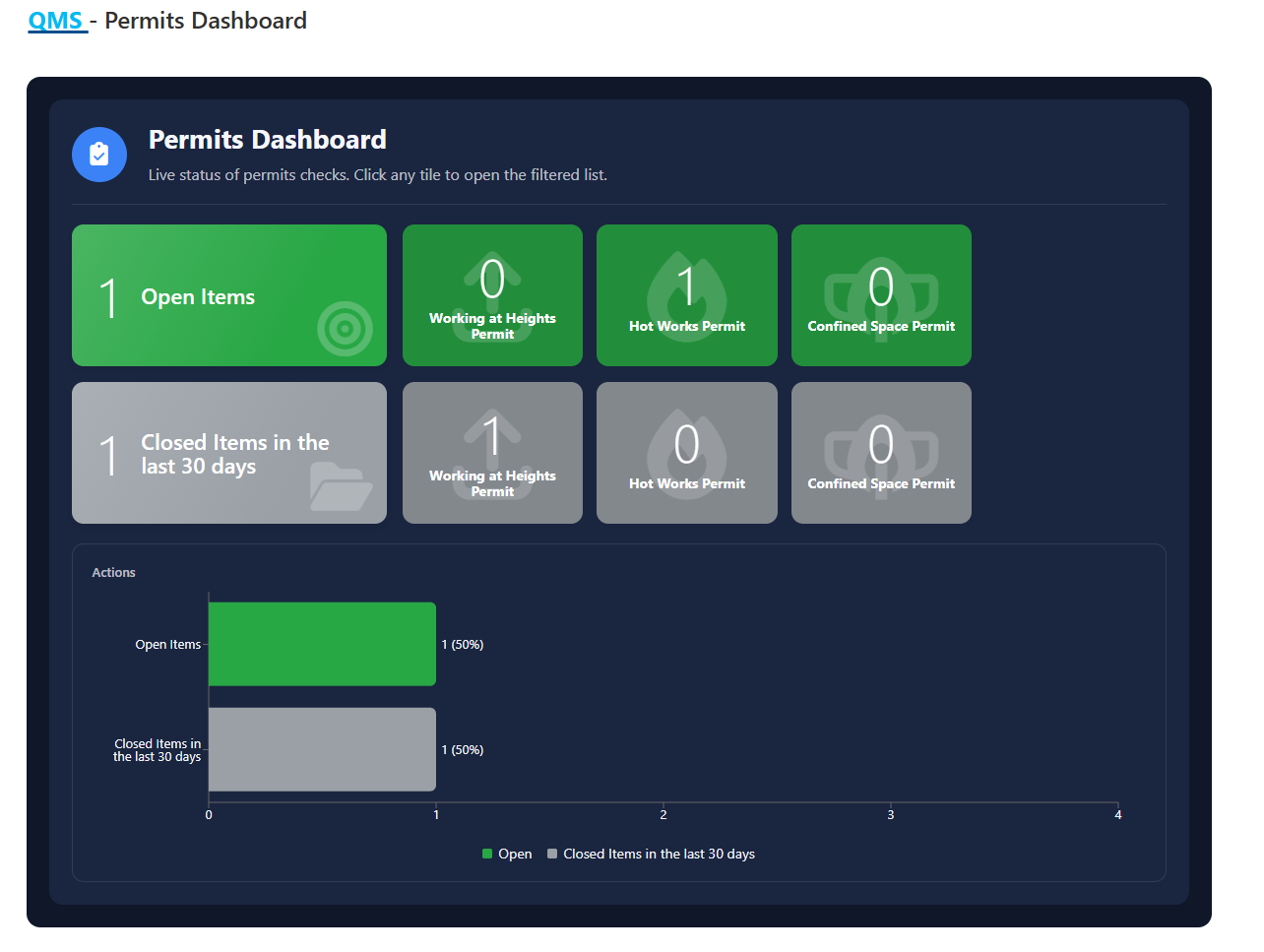
This is the part audits live or die on. Every step writes an entry: who did what, when, and what the form said at the time. Documents keep their version history. Sign-offs are stamped. A dashboard you build to match your own checks shows what is open and what is overdue, and every tile clicks straight through to the items behind it.
Acknowledgements work the same way. Send a procedure to thirty people and you can see who has opened it, so a missed read shows up instead of being assumed.
When an assessor asks for evidence, you are not digging through inboxes. You point at the record.
Where all of this sits
Inside your own Microsoft 365 tenant. SharePoint holds the documents and the version history. Lists act as the database. There is no separate vendor cloud holding your records. You will not be licensing premium connectors either, and nobody needs a Power Platform seat to take part.
Want to see it run on your site?
A short demo on a real form beats any brochure.